Teen Patti Tiger for PC
Play Teen Patti Tiger on your Windows or Mac computer using a free Android emulator. Bigger screen, faster play, keyboard shortcuts — the full experience on your desktop.
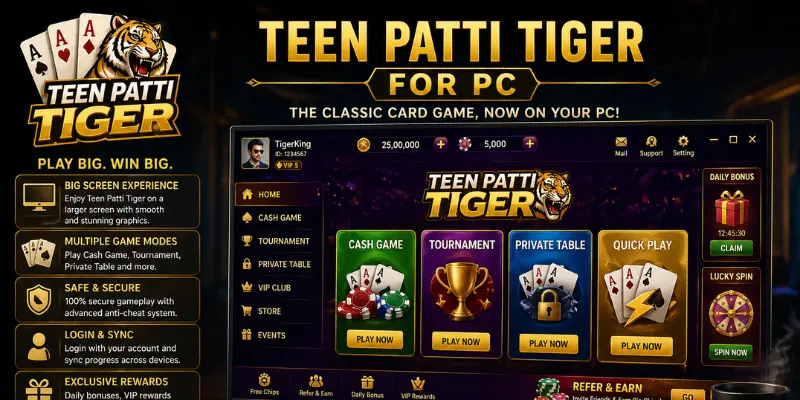
Why Play Teen Patti Tiger on PC?
The mobile app is excellent, but PC gameplay offers advantages that serious players genuinely appreciate — especially during long sessions.
Bigger Screen = Better Cards
Reading card values, tracking pot sizes, and monitoring opponents is significantly easier on a 21-inch monitor than a 6-inch phone screen.
No Battery Anxiety
Long sessions on mobile drain the battery fast. PC gameplay runs indefinitely — no chargers, no overheating worries, no battery warnings.
Keyboard Shortcuts
BlueStacks lets you map keyboard keys to in-game actions. Speed up betting, fold quickly, or trigger actions with single keystrokes.
Multi-Window Capability
Run BlueStacks alongside a browser to check strategies or track bonuses simultaneously — something impossible on a single-screen phone.
Better Internet Connection
Wired Ethernet on a PC provides more stable latency than mobile data or WiFi — important for fast-action games like Dragon vs Tiger.
Account Security
Your PC session can remain logged in between play sessions without the app being closed. No repeated login OTPs every session.
Complete Step-by-Step Installation Guide
Download BlueStacks Emulator
Go to bluestacks.com and download BlueStacks 5 for Windows or Mac. The installer file is approximately 600 MB. Pick the version matching your OS — do not use BlueStacks 4 or older versions.
Install BlueStacks
Run the downloaded installer (BlueStacks-Installer.exe on Windows). Accept the license agreement, choose the installation location, and click Install Now. The process takes 3–5 minutes and sets up a full Android environment on your PC.
Complete BlueStacks Initial Setup
After installation, BlueStacks launches automatically. Complete the initial setup — you may need to sign in with a Google account (optional for installing APKs directly). Let BlueStacks finish its configuration process.
Download the Teen Patti Tiger APK
On your PC browser, visit the Teen Patti Tiger download page and download the APK file. Save it to your Desktop or Downloads folder for easy access. Do not open the APK in the browser — save it to disk first.
Install the APK in BlueStacks
Two methods work: (1) Drag the APK file directly into the BlueStacks window — it installs automatically. (2) In BlueStacks, click the folder icon in the sidebar, select "Install APK", and navigate to your downloaded file.
Launch Teen Patti Tiger
Find the Teen Patti Tiger icon in the BlueStacks home screen or app drawer. Click it to launch. Register your account using your Pakistani phone number, link your JazzCash/EasyPaisa wallet, and claim your welcome bonus.
BlueStacks vs LDPlayer – Which to Choose?
| Feature | BlueStacks 5 | LDPlayer 9 |
|---|---|---|
| Android Version | Android 9 (Pie) | Android 9 (Pie) |
| RAM Usage | ~1.5 GB | ~1 GB |
| Best For | Most users | Low-spec PCs |
| APK Install Support | ✓ Yes | ✓ Yes |
| Keyboard Mapping | ✓ Full support | ✓ Full support |
| macOS Support | ✓ Official support | ✗ Windows only |
| Performance | Excellent | Very Good |
| Price | Free (with ads) | Free |
Recommendation: Use BlueStacks 5 on Mac (only option) or on a decent Windows PC. Use LDPlayer if your PC has less than 4 GB RAM or struggles to run BlueStacks smoothly.
System Requirements
🪟 Windows Requirements
🍎 Mac Requirements
Troubleshooting BlueStacks Issues
BlueStacks won't start / crashes on launch
Enable Virtualization Technology in your BIOS settings. Restart your PC, enter BIOS (usually F2 or DEL key on startup), find Virtualization (VT-x or AMD-V), and enable it. Save and restart.
Teen Patti Tiger APK fails to install in BlueStacks
Make sure BlueStacks is fully loaded (past the home screen) before dragging the APK. If drag-and-drop fails, use the 'Install APK' button in the sidebar menu instead.
Game runs very slowly or lags on PC
In BlueStacks settings, increase the allocated RAM to 4 GB and CPU cores to 4. Also set Performance Mode to 'High Performance'. If still slow, close all other programs while playing.
Can't connect to game servers through BlueStacks
Restart BlueStacks and your internet router. Temporarily disable your PC antivirus or firewall — some security software blocks emulator network traffic. Add BlueStacks to the antivirus exception list.
BlueStacks ads are intrusive
Consider LDPlayer as an alternative — it's completely ad-free. Or use BlueStacks with an ad blocker extension installed in its browser.
Prefer Playing on Mobile?
The Android app offers the same full feature set as the PC version and is optimized for all Android phones. For most Pakistani players, mobile is the more convenient option.
PC Version FAQs
BlueStacks 5 is the most widely recommended emulator for Teen Patti Tiger. It's free, has a native Android 9 core, and runs smoothly on any Windows PC made after 2015. LDPlayer is a strong alternative for lower-spec machines — it's lighter and uses less RAM.
Yes. Both BlueStacks and Teen Patti Tiger APK are completely free to download. The only costs are optional in-app deposits if you choose to play with real money. You can use bonus chips to play without spending anything.
Yes. Teen Patti Tiger accounts sync across devices via your phone number login. Play a round on mobile, continue on PC, or switch between them freely. Chips, bonuses, and VIP progress all carry over.
Minimum: Intel Core i3 or AMD equivalent, 4 GB RAM, 5 GB free storage, Windows 7+ or macOS 10.12+. For a smooth, high-quality experience: Intel Core i5, 8 GB RAM, dedicated GPU. BlueStacks also requires Virtualization Technology (VT-x/AMD-V) to be enabled in your BIOS.
No — simultaneous logins on the same account are not permitted. If you log in on PC while already logged in on mobile, the mobile session will be logged out. Switch between devices freely, but use them one at a time.
Yes. On a large monitor, the card tables are much larger and easier to read. The UI scales up beautifully, and you can use keyboard shortcuts within BlueStacks to speed up your play. The overall experience is significantly more comfortable for longer sessions.